Teaching Copilot to Speak Your Repository's Language
Working for over 14 years with software development, I always find myself thinking about trends and new technologies that can be used to reduce friction in the dev’s daily life.
Did you know there’s the possibility of adding personalized instructions directly in your repository for AI agents? Basically, you can “teach” Copilot about the rules, patterns, and styles of your project, and it will generate suggestions much more aligned with what you and your team really need.
It’s like having a coworker who has already read all the project documentation and knows exactly what should or shouldn’t be suggested—and this coworker doesn’t sleep, doesn’t get tired, and is always ready to help you code.
This feature is an incredible step to transform Copilot into something more than just an “intelligent autocomplete”: it becomes an active member of the team, shaped by the context you provide.

[Image generated by AI]
Overview
Here we’ll focus on Copilot, as it has the ability to give context to the repository. Instead of just generating “generic” code, now we can teach the AI about project rules, conventions, frameworks, and even the small details that normally only those already on the team know.
In practice, this transforms Copilot into something much more than an intelligent autocomplete: it becomes a technical partner shaped by your repository. If you work on a large project, with multiple modules and different stacks, having personalized instructions is like writing a manual for the AI.
And the best: all of this is versioned in the repository itself. That is, any dev who clones the project already inherits the same level of context.

[Image generated by AI]
Prerequisites
Before configuring, it’s worth checking some basic points:
1. Instructions file in the repository
- Create the .github/copilot-instructions.md at the project root (or specific files in .github/instructions/).
- This is the “manual” that Copilot will read to align with your team’s practices.
2. Feature enabled
- The feature is still in public preview, so it needs to be active on your account/organization.
3. Updated IDE/Editor
- Make sure you’re using the latest version of GitHub Copilot in VS Code, JetBrains, or the web interface, because only these versions already understand custom instructions.
4. Context awareness
- Instructions are applied together with other layers (personal, organization, etc.). That is, avoid contradictions: if in the repository you say “use React”, but in personal instructions you ask “prefer Vue”, Copilot may get confused.
With this ready, you’re ready to start personalizing your experience with Copilot and shaping code suggestions to your style and the real needs of the project.

[Image generated by AI]
Types of Personalized Instructions
This is the point where Copilot stops being “just a generic assistant” and really starts to speak your project’s language. There are three main ways you can give instructions, and each has its usefulness depending on the size and complexity of the repository.
1. Repository-Wide Instructions
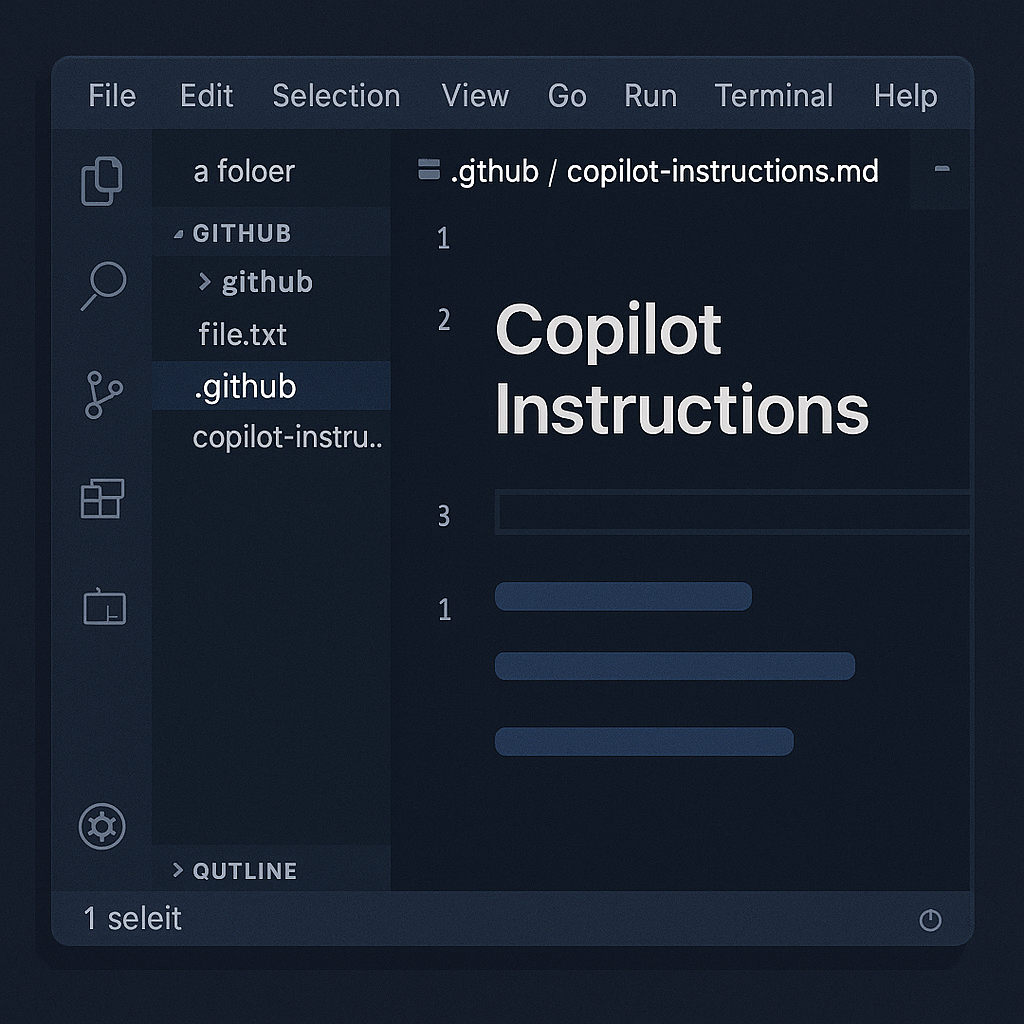
This is where you define the general rules of the game. A file called .github/copilot-instructions.md at the root serves as a guide for everything that happens within the repository. It’s where you can write things like:
- “Prefer TypeScript over JavaScript.”
- “Use clean architecture on the backend.”
- “Tests should be written with JUnit.”
In practice, it’s like having a secret README just for Copilot.
[Image generated by AI]
2. Path-Specific Instructions
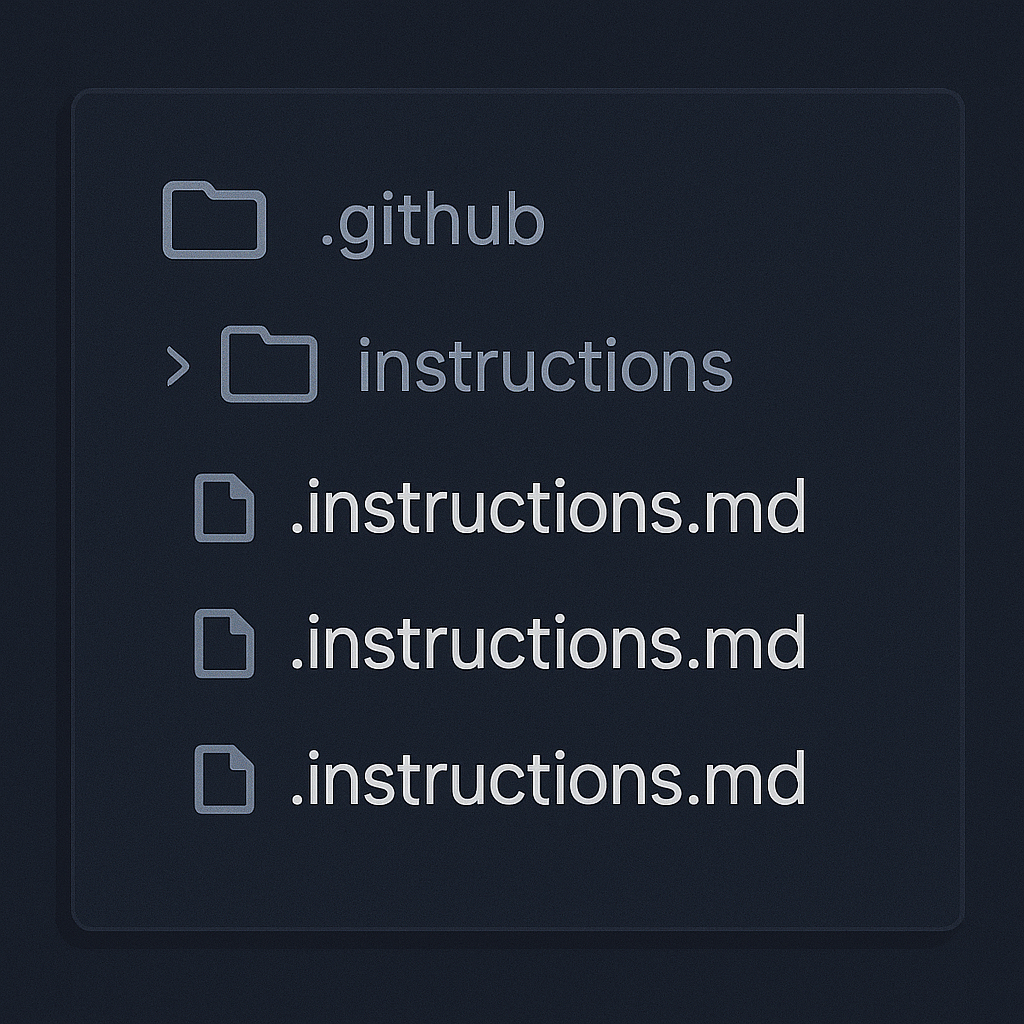
Now imagine a monolithic project with several areas: API, frontend, mobile, infra scripts. Each can have different rules. With specific instructions, you create files inside .github/instructions/ and use glob patterns (applyTo) to say where they apply.
Practical example:
---
applyTo: "src/**/*.ts"
---
Always use async/await instead of chained Promises.
This is powerful because it prevents Copilot from suggesting off-pattern code in specific parts of the project.
[Image generated by AI]
Use in Real Environment and Checks
After you create the instruction files, Copilot starts acting as if it had read all the project documentation. And yes, you can check if this is really happening.
How it works in practice
- With each suggestion, Copilot “reads” the instructions along with the code.
- If you’re in a file that matches an applyTo, specific instructions are applied along with the general ones.
- This allows returning suggestions closer to the style and patterns you defined.
It’s like having a living linter that, instead of just pointing out errors, already suggests the right code from the start.
How to check if it’s working
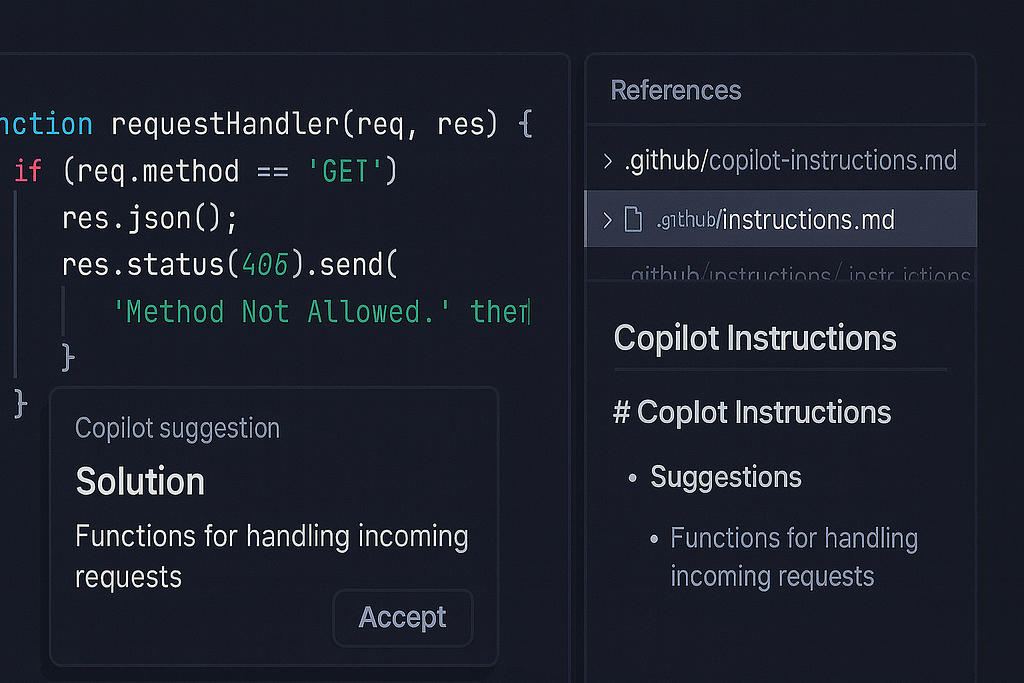
Within Copilot Chat (in the IDE or GitHub), you can often see the References section at the end of the AI’s response.
- If something like .github/copilot-instructions.md appears, it’s a sign that Copilot used your instructions.
- If it doesn’t appear, the file may not be configured in the right place or may not be enabled in the chat.
It’s a simple detail, but it helps to be sure that the configuration effort wasn’t in vain.
Attention to conflicts
Remember that Copilot also takes into account:
- Personal dev instructions (what you configured in your account).
- Organization instructions.
- Repository instructions.
If they conflict (“use Vue” vs “use React”), behavior can become unpredictable. So, it’s good to align with the team and avoid contradictions.
[Image generated by AI]
Enable or Disable
You won’t always want Copilot to follow the repository instructions. Sometimes you want it to think “outside the box” or ignore specific rules just to experiment with a new approach. And yes, you can turn personalized instructions on and off simply.
In Copilot Chat
If you’re inside the repository, the chat shows a little button to “Enable/Disable custom instructions”. It’s basically a switch:
- On → Copilot reads the .github/copilot-instructions.md and files inside .github/instructions/.
- Off → it ignores these rules and generates code like a normal autocomplete.
It’s useful when you want to test alternative solutions without the team rules filter.
In Code Review (Pull Requests)
On GitHub itself, you can configure whether Copilot should or shouldn’t consider personalized instructions when reviewing PRs.
The path is: Settings → Code & automation → Copilot → Code review → Use custom instructions when reviewing pull requests.
If you turn this off, Copilot reviews the PR without looking at the repository rules.
Practical Recommendations (from an experienced developer’s perspective)
After years dealing with mobile, web, and backend projects, I’ve learned that the difference between a team that “uses a tool” and one that extracts real value from it lies in the small day-to-day practices. Here are some tips I would apply without thinking twice when working with personalized instructions in Copilot:
1. Document for humans, not just for AI
Don’t fall into the temptation of writing instructions thinking only about Copilot. Write as if you were explaining to a new coworker who just joined the team. This guarantees clarity for both people and AI.
👉 Example: “Prefer async/await instead of then/catch” is much more useful than “use async/await”.
2. Avoid contradictions between instructions
I’ve seen teams get tangled up because the repo said “use React” and each dev’s personal instructions said “prefer Vue”.
Define one source of truth and keep everyone aligned.
3. Update as the project evolves
Your project isn’t static. Today it might be Flutter 3.22, tomorrow it might be on 3.27. If you don’t update the instructions, you’ll receive outdated suggestions that only give rework. Reserve moments (e.g., end of sprint) to review copilot-instructions.md.
4. Include code and architecture conventions
Define how the team wants code to be written.
- Variable naming (camelCase, snake_case).
- Commit pattern.
- Preferred frameworks and libs.
- Layer structure (e.g., “Controllers never call DB directly”).
This makes Copilot suggest code already in the format that passes code review.
5. Use as an onboarding tool
New devs always suffer at first to understand the “team way.” If Copilot already suggests code aligned with the pattern, onboarding becomes much faster and smoother.
6. Test the impact
Don’t rely only on the feeling that it “improved.” Compare PRs before and after instructions: fewer style comments? Fewer build errors? If yes, you’re on the right track.
So, if there’s one thing I’ve learned in these 14 years on the road is that technology isn’t just about code, it’s about how we use tools to work better, as a team, and create solutions that make a difference.
GitHub Copilot with personalized instructions is exactly that: a step beyond autocomplete. It’s like taking all the culture, patterns, and experience of your team and putting it next to the AI, transforming it into a true development partner.
And now, the ball is in your court:
- Will you let Copilot be just another tool in your stack?
- Or will you teach it to play your team’s game, speaking the same language as you?
My tip: try it on your next project. Start simple, write two or three instructions that already make a difference in your daily life and feel the impact. I’m sure that, just like it happened with me, you’ll realize that you’re putting Copilot not just as an assistant, but as a living part of your team. 🚀

[Image generated by AI]
I’ve been a developer for over 14 years, postgraduate in Software Engineering and Mobile Development, and I write to share real learnings from someone who is in the technology trenches every day.
Read more of my articles at: medium.com/@raphaelkennedy
[[ Buy me a coffee ]]
Follow me on social media
- LinkedIn: raphaelkennedy
- YouTube: @raphaelpontes